Apply
Overview
Terraform’s apply prompt says “Do you want to perform these actions?” with no context — the same prompt whether you’re creating 1 resource or deleting 50. You type “yes” based on faith, not understanding.
The Apply screen adds:
- Context-aware confirmation — shows resource count and whether targeting is active
- Elapsed time tracking — long applies (10+ minutes) need progress feedback
- Pin-scoped execution — apply only pinned resources without typing
-targetaddresses - Error recovery — retry from same session without re-running the full command
Screenshot
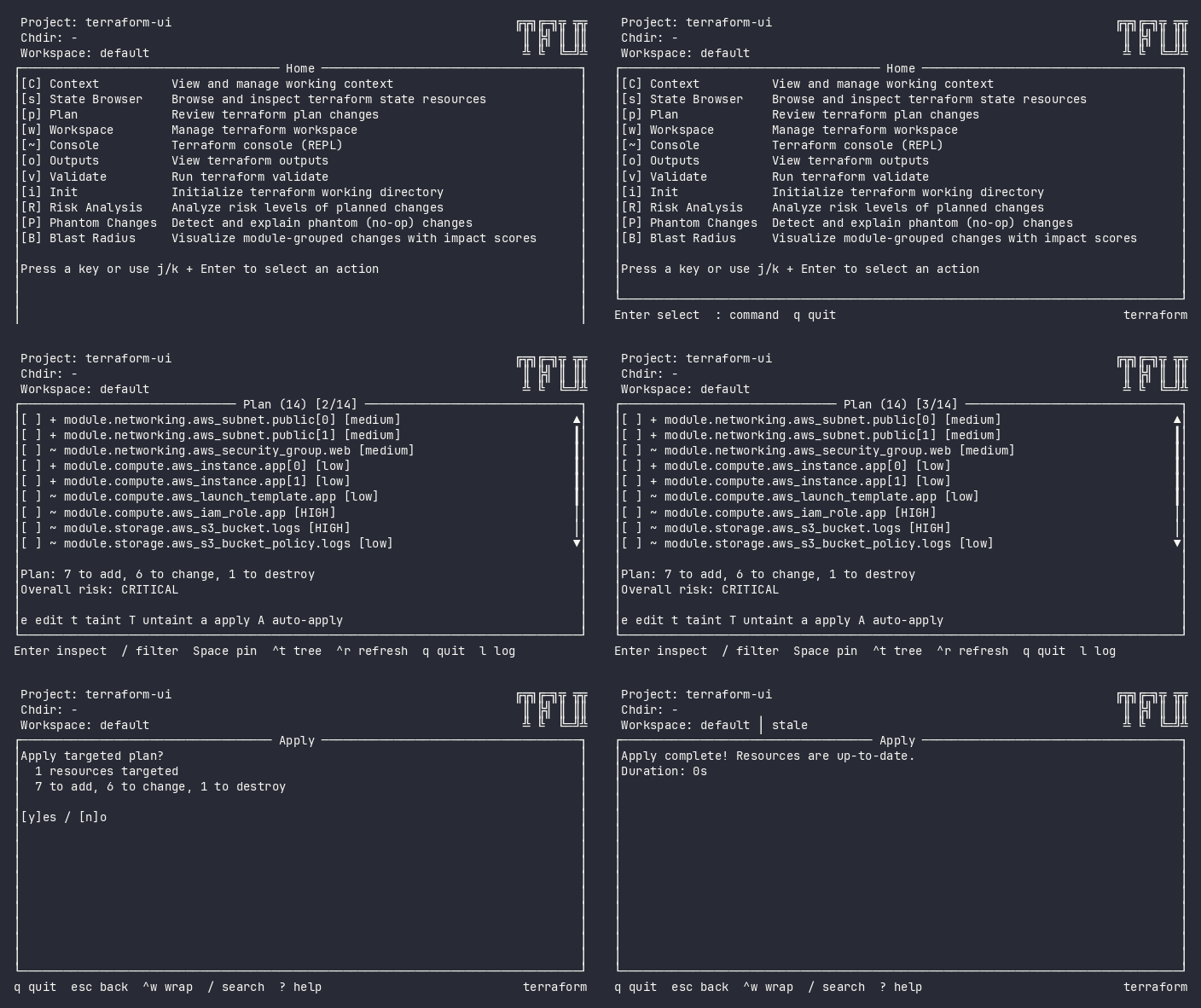
Interactive (TUI)
Entry Points
- From Plan: Press
aafter reviewing changes. If resources are pinned, apply targets only those. - From Home: Press
adirectly. Shows idle state until you confirm.
Keybindings
| Key | Action | Context |
|---|---|---|
Enter |
Start apply (shows confirmation) | Idle |
y / Y / Enter |
Confirm and execute | Confirming |
n / N / Esc |
Cancel | Confirming |
r |
Retry after failure | Error |
Esc / q |
Back to home | Always |
Enter/Esc parity: Enter confirms (yes), Esc cancels (no).
Flow
Plan ──a──→ Apply (no targets → confirming)
Plan ──a──→ Apply (with targets → replanning → confirming)
Plan ──A──→ Apply (auto-approve: skip confirmation)
               │
               ├── y → Apply (running) → Apply (success)
               │                       → Apply (error) ──r──→ retry
               └── n/Esc → DeactivateMsg → return to plan
Replan for Targeted Apply
When pinned resources exist, apply does NOT use the saved plan file directly (terraform constraint). Instead it replans with -target flags to produce a targeted plan, shows it for review, then applies that plan file. This ensures the user always reviews exactly what will be applied.
Command Line (CLI)
# Default: plan first, then apply (with progress)
tfui plan -project ./infra
tfui apply -project ./infra

# Auto-approve: skip confirmation (required for non-interactive apply)
tfui apply -project ./infra -auto-approve

# Silent: no animation. Mirrors terraform — non-interactive apply without a
# plan file requires -auto-approve, else "Apply not allowed for non-interactive
# use" (exit 1), exactly as `terraform apply` behaves with no TTY.
tfui apply -project ./infra -ci -auto-approve

# NDJSON events (terraform-compatible)
tfui apply -project ./infra -json

# Targeted: apply only specific resources
tfui plan -project ./infra -target aws_instance.web
tfui apply -project ./infra

# With chdir (monorepo)
tfui apply -project ./infra -chdir modules/networking
Output Examples
Silent mode:
Apply complete. Resources: 1 added, 0 changed, 0 destroyed.
The counts are terraform’s own tally, so an apply can be reconciled against the plan that was approved. A run that fails partway prints no tally — terraform does not emit one — so the outcome reports what did finish instead:
Error: creating local_file: ...
Applied before the failure: 1 added, 0 changed, 0 destroyed.
Agent mode (JSON):
{
  "status": "complete"
}
Exit Codes
| Code | Meaning |
|---|---|
| 0 | Apply succeeded |
| 1 | Apply failed (terraform error, no plan file, etc.) |
Targeting
CLI: Pass -target to the plan command. The saved plan file already contains only targeted changes. Apply then applies that plan.
TUI: Pin resources with Space in the Plan view. When you press a, tfui re-plans with only pinned resources as targets, then applies that targeted plan.
Standalone CLI: tfui apply -target=X also works on its own. With no saved plan file, apply plans and applies in one shot, so the targets go on that command — terraform’s own constraint is only that -target cannot be combined with a saved plan file, which the TUI pipeline uses.
Equivalence
| Goal | CLI | TUI |
|---|---|---|
| Apply all changes | tfui plan && tfui apply |
p → a → y |
| Apply specific resources | tfui plan -target X && tfui apply |
p → pin X → a → y |
| Check apply result | Exit code + stdout | Success/error screen |
Configuration
# tfui.hcl
plugin "apply" {
  enabled = true
  targets = ["module.networking"]
}
| Option | Type | Default | Description |
|---|---|---|---|
enabled |
bool | true |
Enable/disable the plugin |
targets |
list | [] |
Default resource targets, used when the run carries no -target |
An explicit -target replaces the list rather than adding to it, the same way it
does for plugin "plan".
Related
- Plan – review changes before applying
- Risk Analysis – assess risk before applying